1 + 100[1] 101Make sure you are able to do the below exercise (including the extra tips!)
The simplest thing you could do with R is to do arithmetic:
1 + 100[1] 101Notice: Any time you hit return and the R session shows a “+” instead of a “>”, it means it’s waiting for you to complete the command. If you want to cancel a command you can hit Esc and RStudio will give you back the “>” prompt.
Tip: Canceling commands
If you’re using R from the command line instead of from within RStudio, you need to use Ctrl+C instead of Esc to cancel the command. This applies to Mac users as well!
Canceling a command isn’t only useful for killing incomplete commands: you can also use it to tell R to stop running code (for example if it’s taking much longer than you expect), or to get rid of the code you’re currently writing.
The text after each line of code is called a “comment”. Anything that follows after the hash (or octothorpe) symbol # is ignored by R when it executes code.
3 + 5 * (2 ^ 2) # if you forget some rules, this might helpWe can also do comparisons in R:
1 == 1 # equality (note two equals signs, read as "is equal to")[1] TRUE1 != 2 # inequality (read as "is not equal to")[1] TRUE1 < 2 # less than[1] TRUE1 <= 1 # less than or equal to[1] TRUE1 > 0 # greater than[1] TRUE1 >= -9 # greater than or equal to[1] TRUEWe can store values in variables using the assignment operator <-, like this:
x <- 1/40Notice that assignment does not print a value. Instead, we stored it for later in something called a variable. x now contains the value 0.025:
x[1] 0.025More precisely, the stored value is a decimal approximation of this fraction called a floating point number.
Look for the Environment tab in the top right panel of RStudio, and you will see that x and its value have appeared.
Notice also that variables can be reassigned:
x <- 100x used to contain the value 0.025 and now it has the value 100.
Assignment values can contain the variable being assigned to:
x <- x + 1 #notice how RStudio updates its description of x on the top right tab
y <- x * 2
The right hand side of the assignment can be any valid R expression. The right hand side is fully evaluated before the assignment occurs.
It is also possible to use the = operator for assignment:
x = 1/40But this is much less common among R users. The most important thing is to be consistent with the operator you use. There are occasionally places where it is less confusing to use <- than =, and it is the most common symbol used in the community. So the recommendation is to use <-.
Challenge 1
Which of the following are valid R variable names?
min_height
max.height
_age
.mass
MaxLength
min-length
2widths
celsius2kelvin
Solution to challenge 1
The following can be used as R variables:
min_height
max.height
MaxLength
celsius2kelvin
The following creates a hidden variable:
.massThe following will not be able to be used to create a variable
_age
min-length
2widths
For more advice, highly recommend studying Hadley Wickham’s style guide1.
Suppose a high school student asks us for help solving several quadratic equations of the form \(ax^2+bx+c = 0\). The quadratic formula gives us the solutions:
\[ \frac{-b - \sqrt{b^2 - 4ac}}{2a}\,\, \mbox{ and } \frac{-b + \sqrt{b^2 - 4ac}}{2a} \] which of course change depending on the values of \(a\), \(b\), and \(c\). One advantage of programming languages is that we can define variables and write expressions with these variables, similar to how we do so in math, but obtain a numeric solution. We will write out general code for the quadratic equation below, but if we are asked to solve \(x^2 + x -1 = 0\), then we define:
a <- 1
b <- 1
c <- -1
which stores the values for later use. We use <- to assign values to the variables.
Copy and paste the code above into your console to define the three variables. Note that R does not print anything when we make this assignment. This means the objects were defined successfully. Had you made a mistake, you would have received an error message.
To see the value stored in a variable, we simply ask R to evaluate a and it shows the stored value:
a[1] 1A more explicit way to ask R to show us the value stored in a is using print like this:
print(a)[1] 1We use the term object to describe stuff that is stored in R. Variables are examples, but objects can also be more complicated entities such as functions, which are described later.
As we define objects in the console, we are actually changing the workspace. You can see all the variables saved in your workspace by typing:
ls()[1] "a" "b" "c" "has_annotations"
[5] "img_path" "x" "y" In RStudio, the Environment tab shows the values:
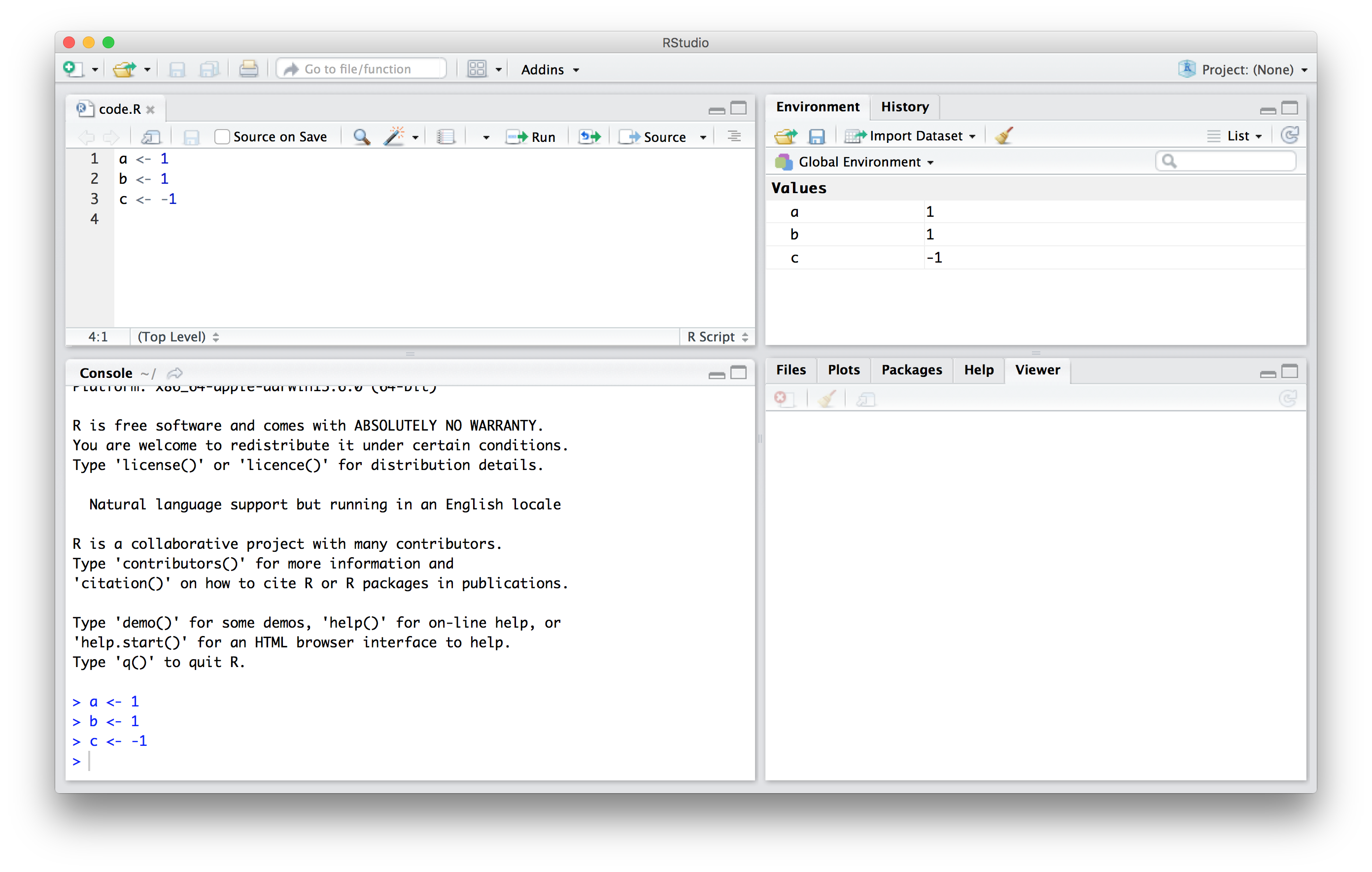
We should see a, b, and c. If you try to recover the value of a variable that is not in your workspace, you receive an error. For example, if you type x you will receive the following message: Error: object 'x' not found.
Now since these values are saved in variables, to obtain a solution to our equation, we use the quadratic formula:
(-b + sqrt(b^2 - 4*a*c))/(2*a)[1] 0.618034What happens if c = 1 instead of -1?
Once you define variables, the data analysis process can usually be described as a series of functions applied to the data. R includes several predefined functions and most of the analysis pipelines we construct make extensive use of these.
We already used thels function. We also used the function sqrt to solve the quadratic equation above. There are many more prebuilt functions and even more can be added through packages. These functions do not appear in the workspace because you did not define them, but they are available for immediate use.
In general, we need to use parentheses to evaluate a function. If you type ls, the function is not evaluated and instead R shows you the code that defines the function. If you type ls() the function is evaluated and, as seen above, we see objects in the workspace.
sin(1) # trigonometry functions[1] 0.841471?sinThis is one advantage that RStudio has over R on its own, it has auto-completion abilities that allow you to more easily look up functions, their arguments, and the values that they take.
Unlike ls, most functions require one or more arguments. Below is an example of how we assign an object to the argument of the function log. Remember that we earlier defined a to be 1:
log(8)[1] 2.079442log(a) [1] 0You can find out what the function expects and what it does by reviewing the very useful manuals included in R. You can get help by using the help function like this:
help("log")For most functions, we can also use this shorthand:
?log