ebola_data <- read.csv("https://tinyurl.com/ebola-data-sample")R and RStudio Intro
Accessing this tutorial:

Classes PowerPoint Presentation
Key insights and activities
R and Rstudio installation
RStudio is an interactive desktop environment, but it is not R, nor does it include R when you download and install it. Therefore, to use RStudio, we first need to install R.
- You can download R from the Comprehensive R Archive Network (CRAN)1. Search for CRAN on your browser:
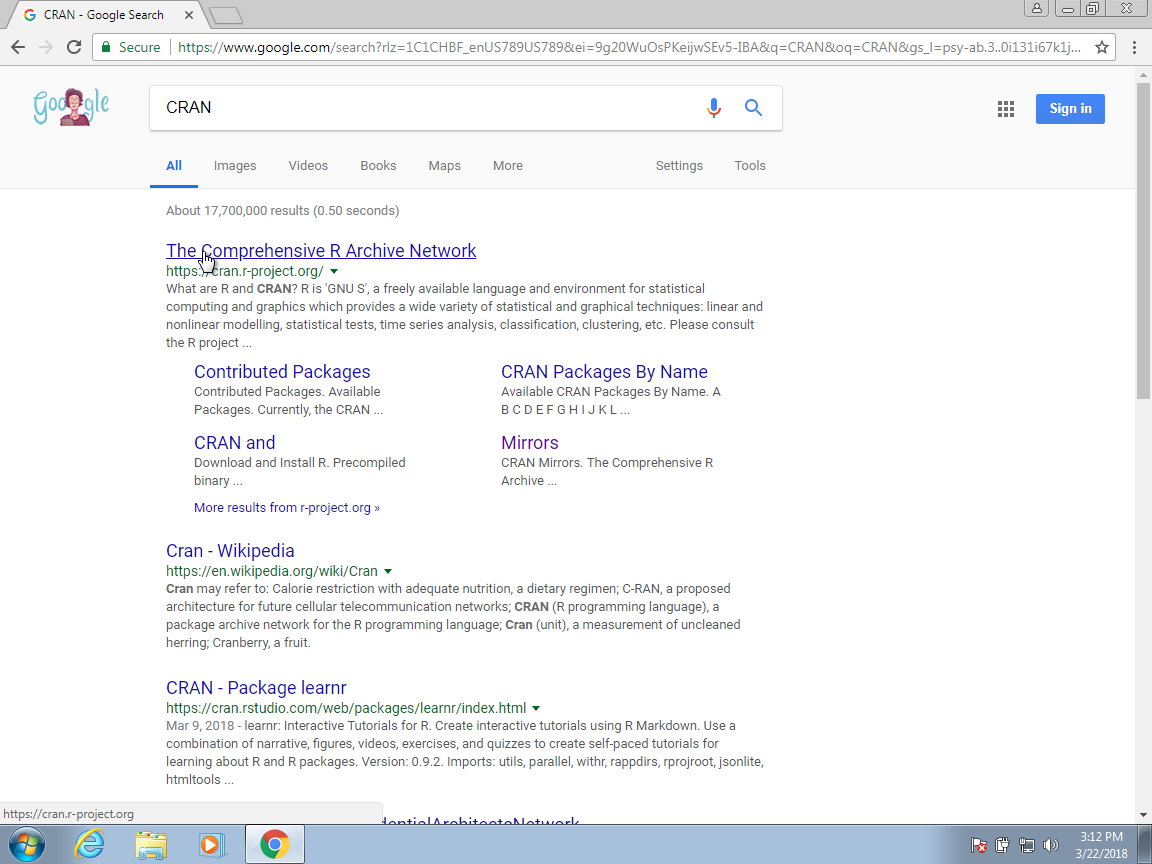
- Once on the CRAN page, select the version for your operating system: Linux, Mac OS X, or Windows.

Here we show screenshots for Windows, but the process is similar for the other platforms. When they differ, we will also show screenshots for Mac OS X.
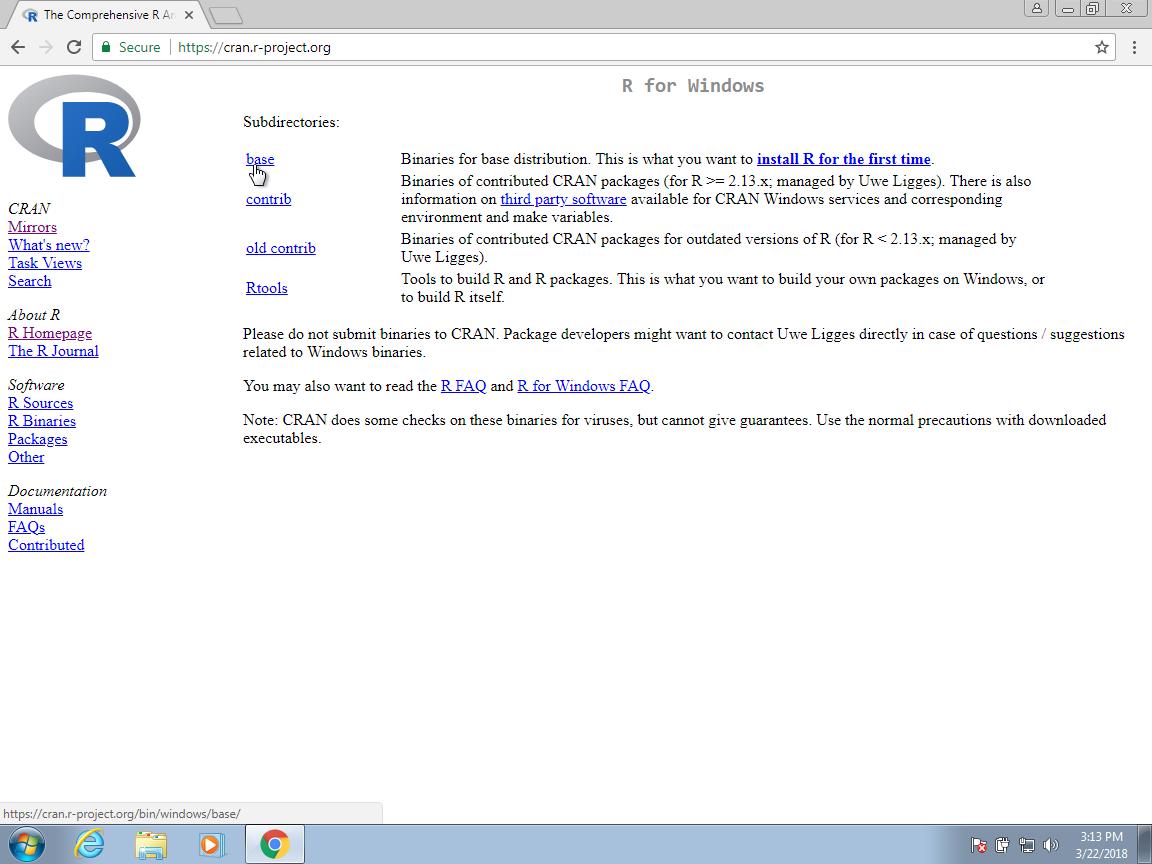
- Once at the CRAN download page, you will have several choices. You want to install the base subdirectory. This installs the basic packages you need to get started. We will later learn how to install other needed packages from within R, rather than from this webpage.
- Click on the link for the latest version to start the download.
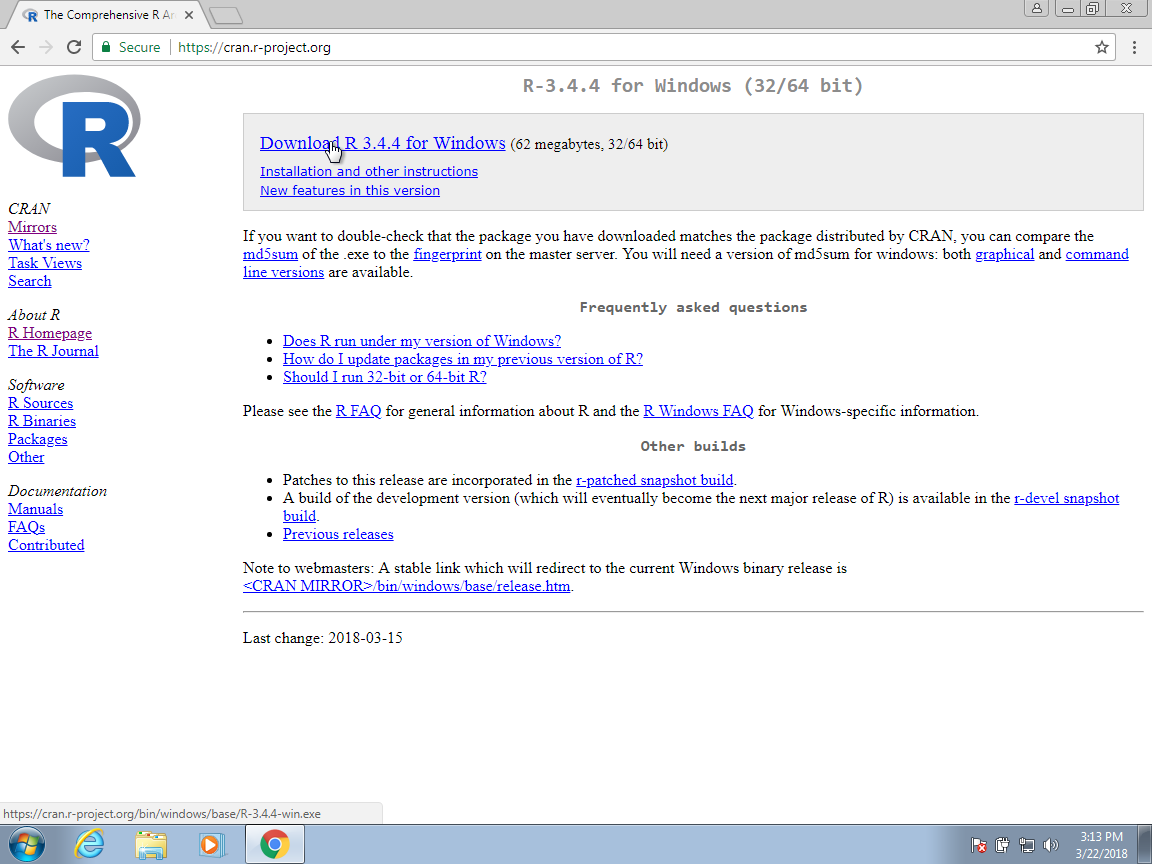
Congratulations! You have installed R.
Installing RStudio
We’ll be using RStudio: a free, open source R Integrated Development Environment (IDE). It provides a built-in editor, works on all platforms (including on servers) and provides many advantages such as integration with version control and project management.
- You can start by searching for RStudio on your browser:
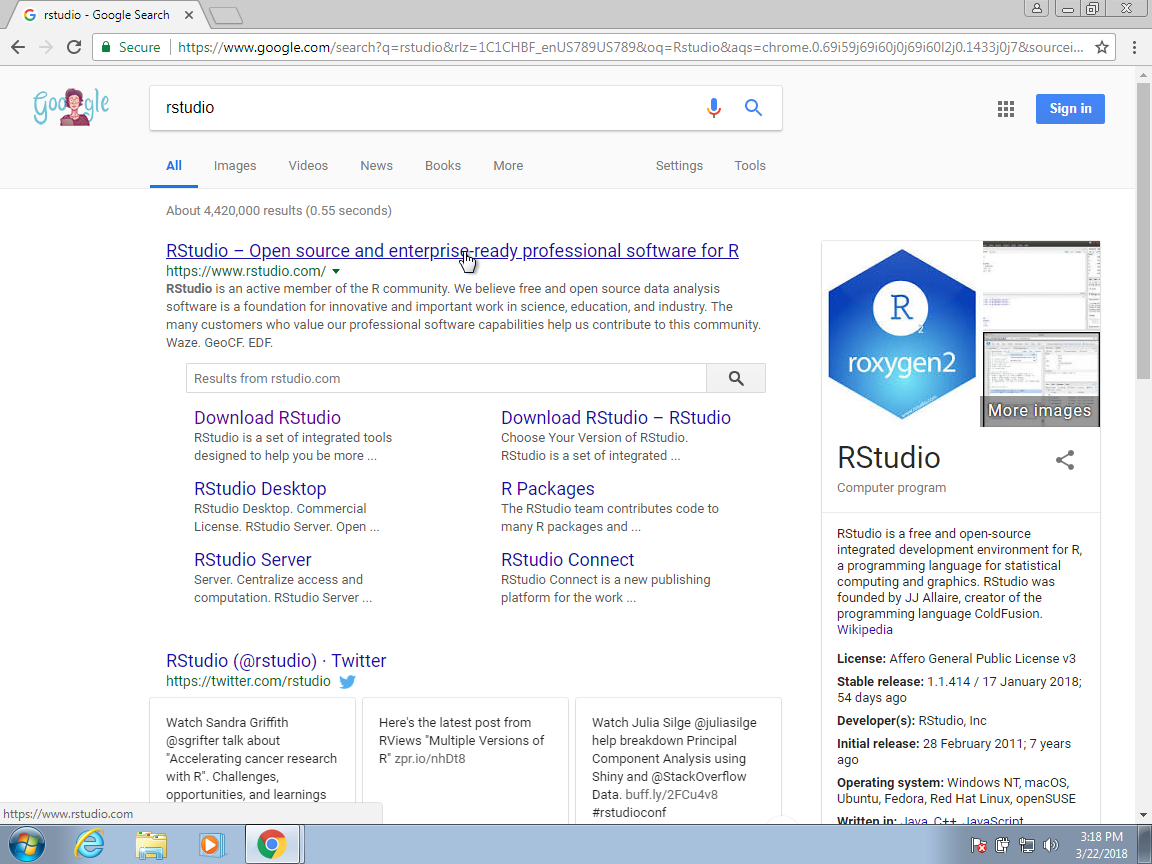
- You should find the RStudio/Posit website as shown Posit. Once there, click on Download RStudio.

- This will give you several options. For what we do use the free Desktop version. Can even insatll Rfrom here if didnt do before.
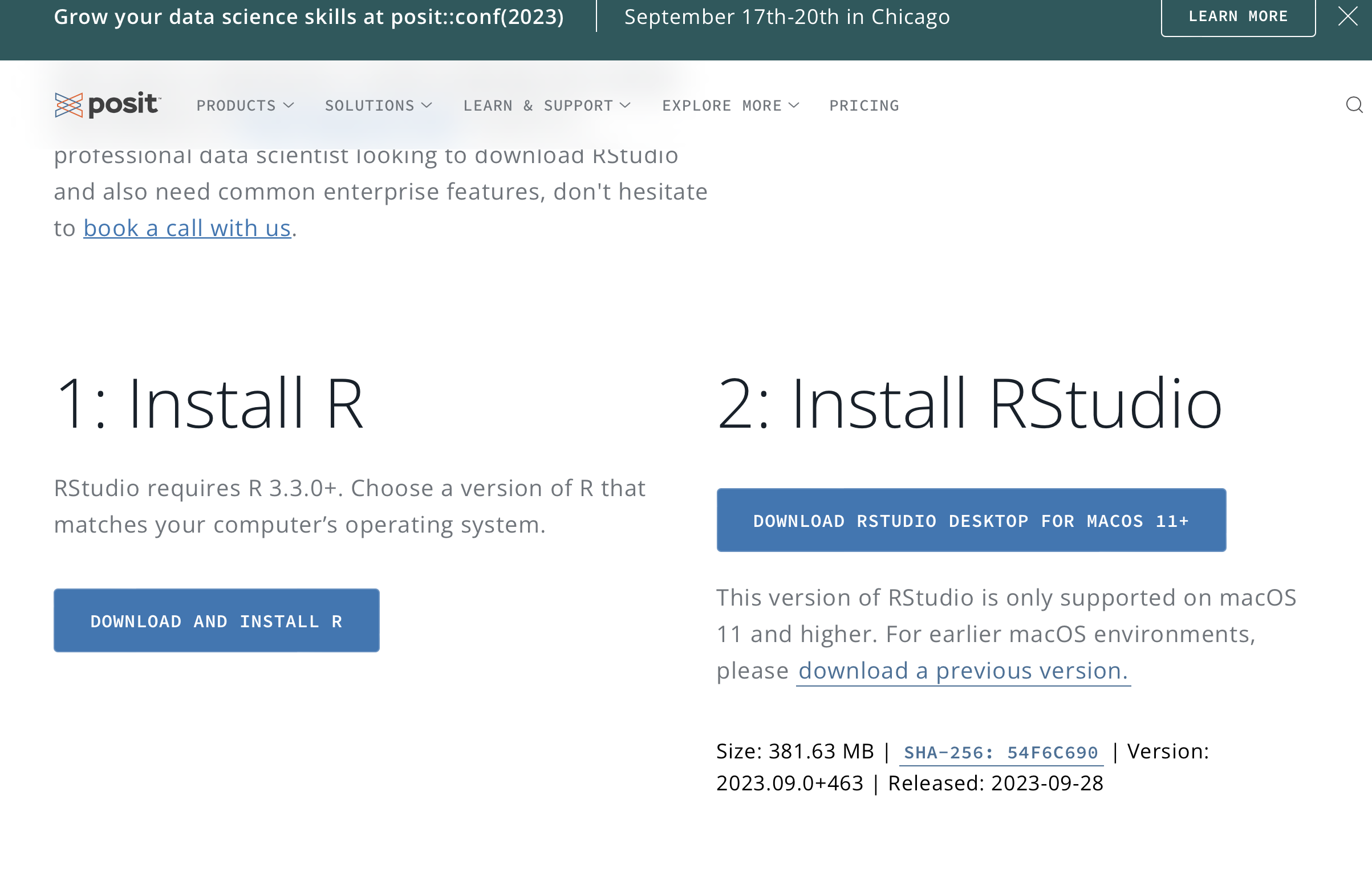
- Once you select this option, it will take you to a page in which the operating system options are provided. Click the link showing your operating system.
Congratulations! You have installed RStudio. You can now get started as you do on any other program in your computer. On Windows, you can open RStudio from the Start menu. If RStudio does not appear, you can search for it. On the Mac, it will be in the Applications folder.
If none of this worked…
As many OS options:
VLab
Access here: VLab
Setting up a project
Classes PowerPoint Presentation
Key insights and activities
Handling projects (extra)
One of the most powerful and useful aspects of RStudio is its project management functionality. We’ll be using this today to create a self-contained, reproducible project.
Challenge 1: Creating a self-contained project
We’re going to create a new project in RStudio:
- Click the “File” menu button, then “New Project”.
- Click “New Directory”.
- Click “New Project”.
- Type in the name of the directory to store your project, e.g. “my_project”.
- If available, select the checkbox for “Create a git repository.”
- Click the “Create Project” button. {: .challenge}
The simplest way to open an RStudio project once it has been created is to click through your file system to get to the directory where it was saved and double click on the .Rproj file. This will open RStudio and start your R session in the same directory as the .Rproj file. All your data, plots and scripts will now be relative to the project directory. RStudio projects have the added benefit of allowing you to open multiple projects at the same time each open to its own project directory. This allows you to keep multiple projects open without them interfering with each other.
Challenge 2: Opening an RStudio project through the file system
- Exit RStudio.
- Navigate to the directory where you created a project in Challenge 1.
- Double click on the
.Rprojfile in that directory. {: .challenge}
Setting Up: Getting started with R and RStudio
Why R?
R is not a programming language like C or Java. It was not created by software engineers for software development. Instead, it was developed by statisticians as an interactive environment for data analysis. You can read the full history in the paper A Brief History of S2. The interactivity is an indispensable feature in data science because, as you will soon learn, the ability to quickly explore data is a necessity for success in this field. However, like in other programming languages, you can save your work as scripts that can be easily executed at any moment. These scripts serve as a record of the analysis you performed, a key feature that facilitates reproducible work. If you are an expert programmer, you should not expect R to follow the conventions you are used to since you will be disappointed. If you are patient, you will come to appreciate the unequal power of R when it comes to data analysis and, specifically, data visualization.
Other attractive features of R are:
- R is free and open source3.
- It runs on all major platforms: Windows, Mac Os, UNIX/Linux.
- Scripts and data objects can be shared seamlessly across platforms.
- There is a large, growing, and active community of R users and, as a result, there are numerous resources for learning and asking questions4 5 6.
- It is easy for others to contribute add-ons which enables developers to share software implementations of new data science methodologies. This gives R users early access to the latest methods and to tools which are developed for a wide variety of disciplines, including ecology, molecular biology, social sciences, and geography, just to name a few examples.
Let’s start!
Basic layout
When you first open RStudio, you will be greeted by three panels:
- The interactive R console/Terminal (entire left)
- Environment/History/Connections (tabbed in upper right)
- Files/Plots/Packages/Help/Viewer (tabbed in lower right)
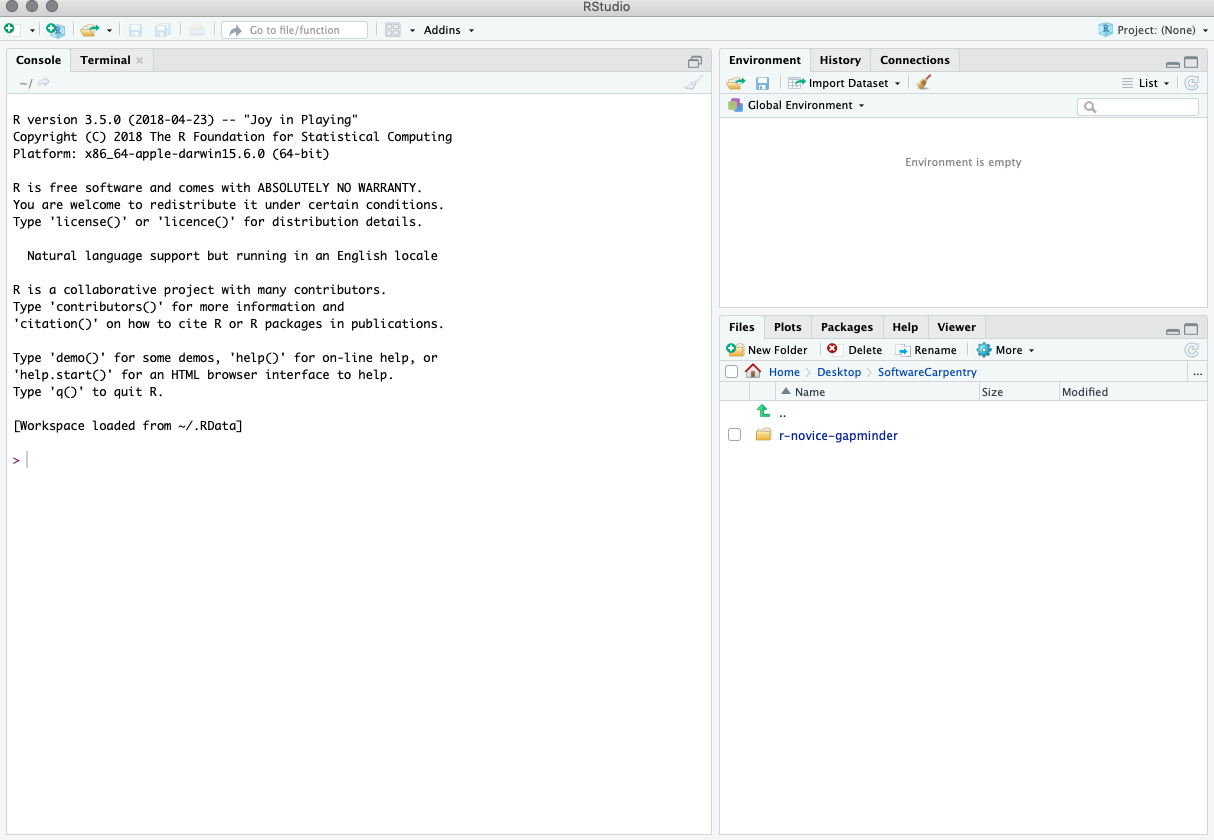
Once you open files, such as R scripts, an editor panel will also open in the top left.

Summary of what all panes do
Lets stop one second and explore them all!
Wondering where that ebola data comes from?
Work flow within RStudio
There are two main ways one can work within RStudio:
R console
Test and play within the interactive R console then copy code into a .R file to run later.
- This works well when doing small tests and initially starting off.
- It quickly becomes laborious
Interactive data analysis usually occurs on the R console that executes commands as you type them. There are several ways to gain access to an R console. One way is to simply start R on your computer. The console looks something like this:
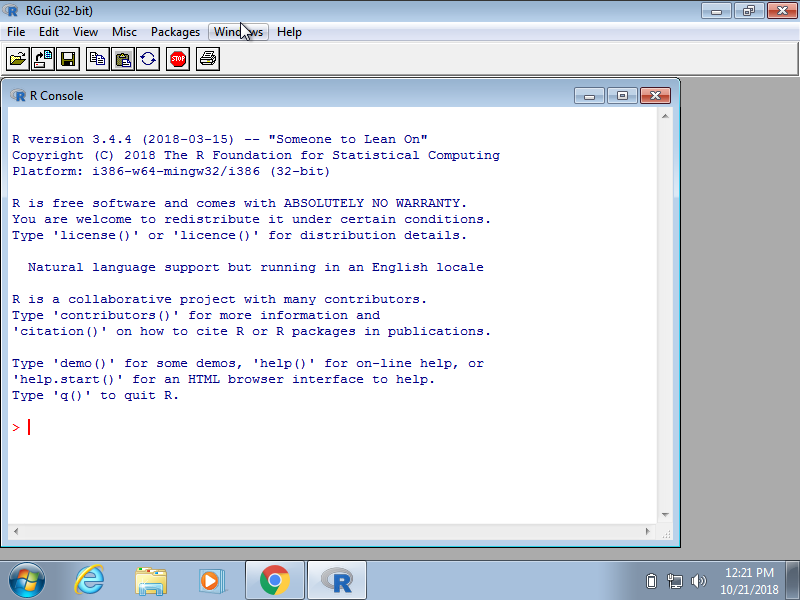
As a quick example, try using the console to calculate a 15% tip on a meal that cost $19.71:
0.15 * 19.71 [1] 2.9565Here, grey boxes are used to show R code typed into the R console. The symbol #> is used to denote what the R console outputs.
Scripts
Start writing in a .R file and use RStudio’s short cut keys for the Run command to push the current line, selected lines or modified lines to the interactive R console.
- This is a great way to start; all your code is saved for later
- You will be able to run the file you create from within RStudio or using R’s
source()function.
One of the great advantages of R over point-and-click analysis software is that you can save your work as scripts. You can edit and save these scripts using a text editor. The material here was developed using the interactive integrated development environment (IDE) RStudio7. RStudio includes an editor with many R specific features, a console to execute your code, and other useful panes, including one to show figures.
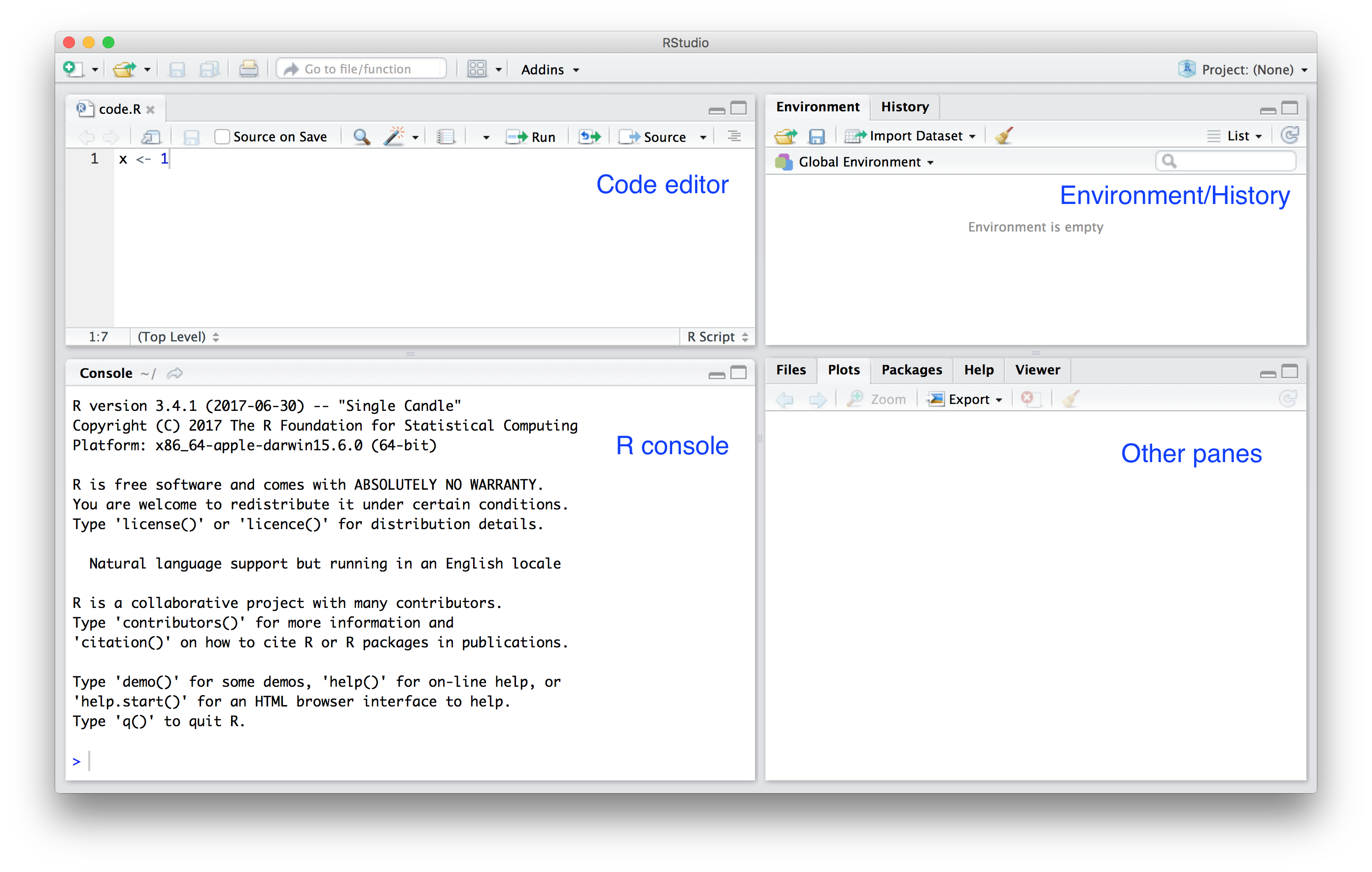
Most web-based R consoles also provide a pane to edit scripts, but not all permit you to save the scripts for later use.
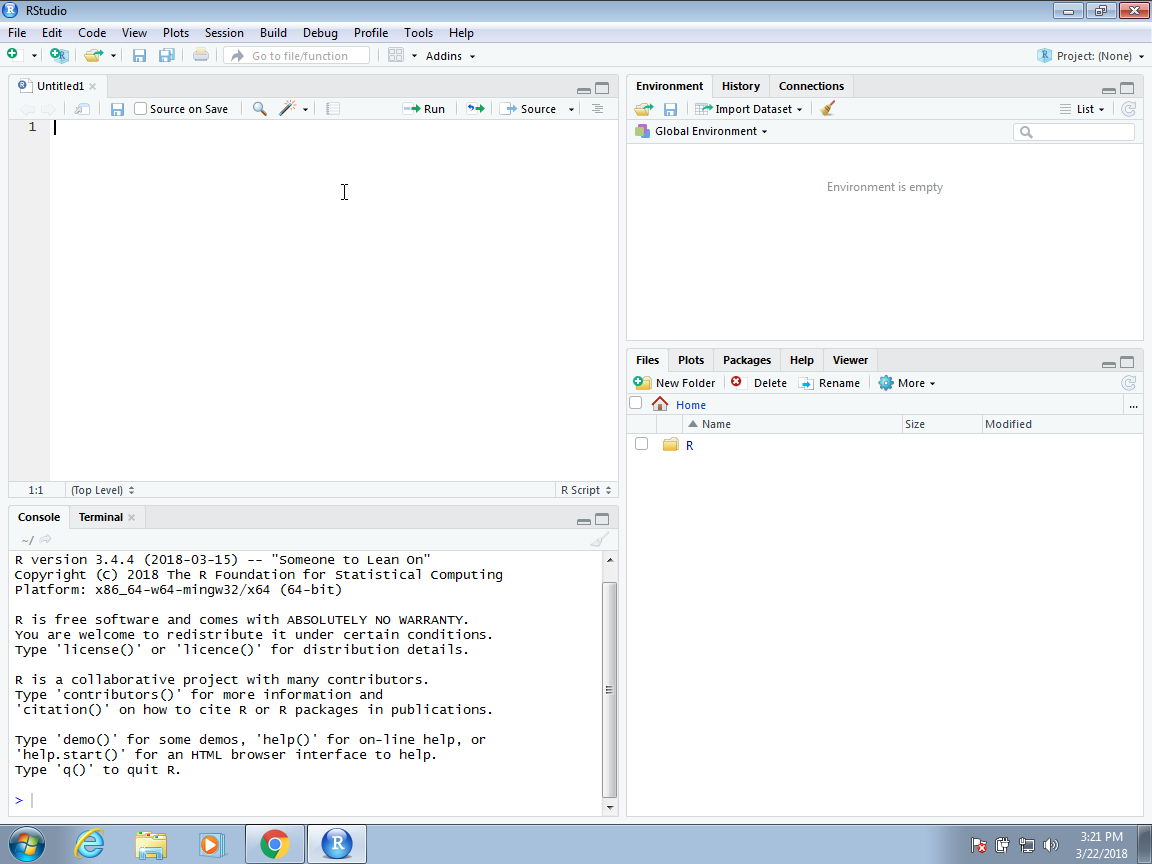
When you start RStudio for the first time, you will see three panes. The left pane shows the R console. On the right, the top pane includes tabs such as Environment and History, while the bottom pane shows five tabs: File, Plots, Packages, Help, and Viewer (these tabs may change in new versions). You can click on each tab to move across the different features.

To start a new script, you can click on File, then New File, then R Script.
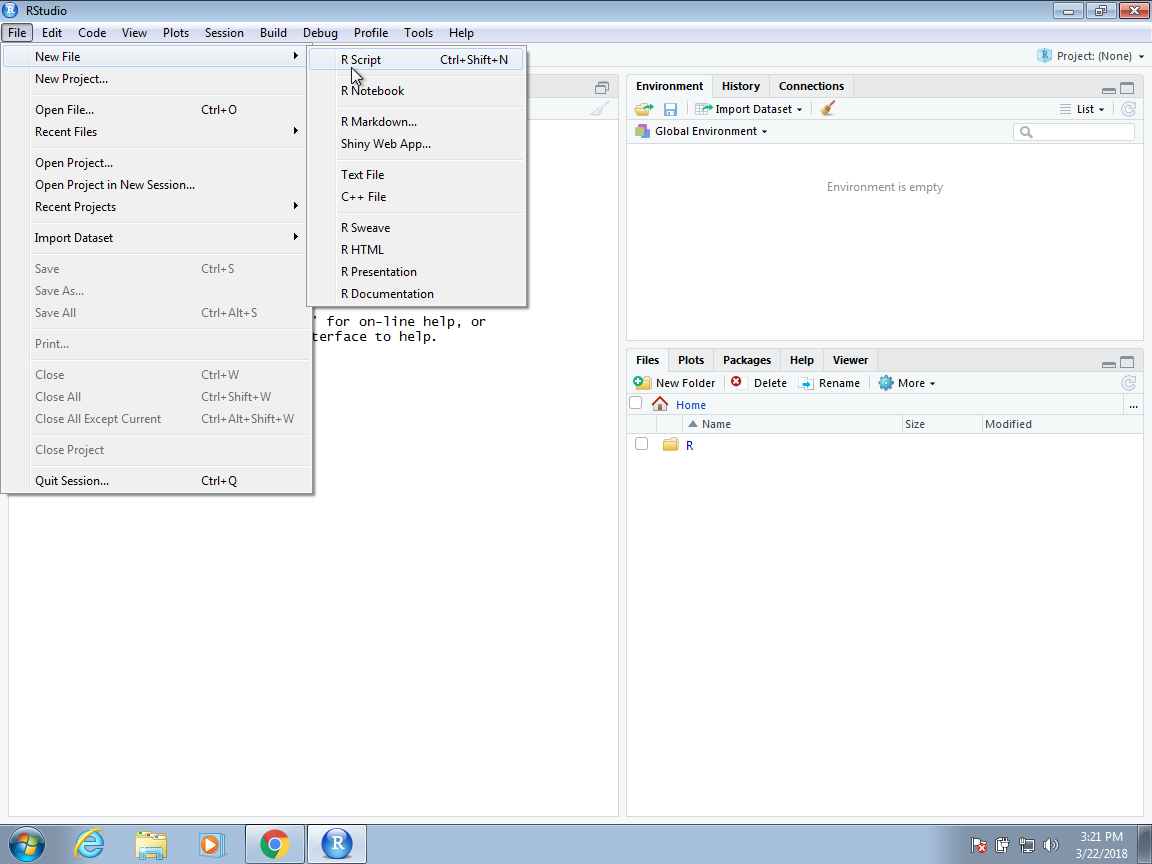
This starts a new pane on the left and it is here where you can start writing your script.
Key bindings
Many tasks we perform with the mouse can be achieved with a combination of key strokes instead. These keyboard versions for performing tasks are referred to as key bindings. For example, we just showed how to use the mouse to start a new script, but you can also use a key binding: Ctrl+Shift+N on Windows and command+shift+N on the Mac.
Although in this tutorial we often show how to use the mouse, we highly recommend that you memorize key bindings for the operations you use most. RStudio provides a useful cheat sheet with the most widely used commands. You can get it from RStudio directly:
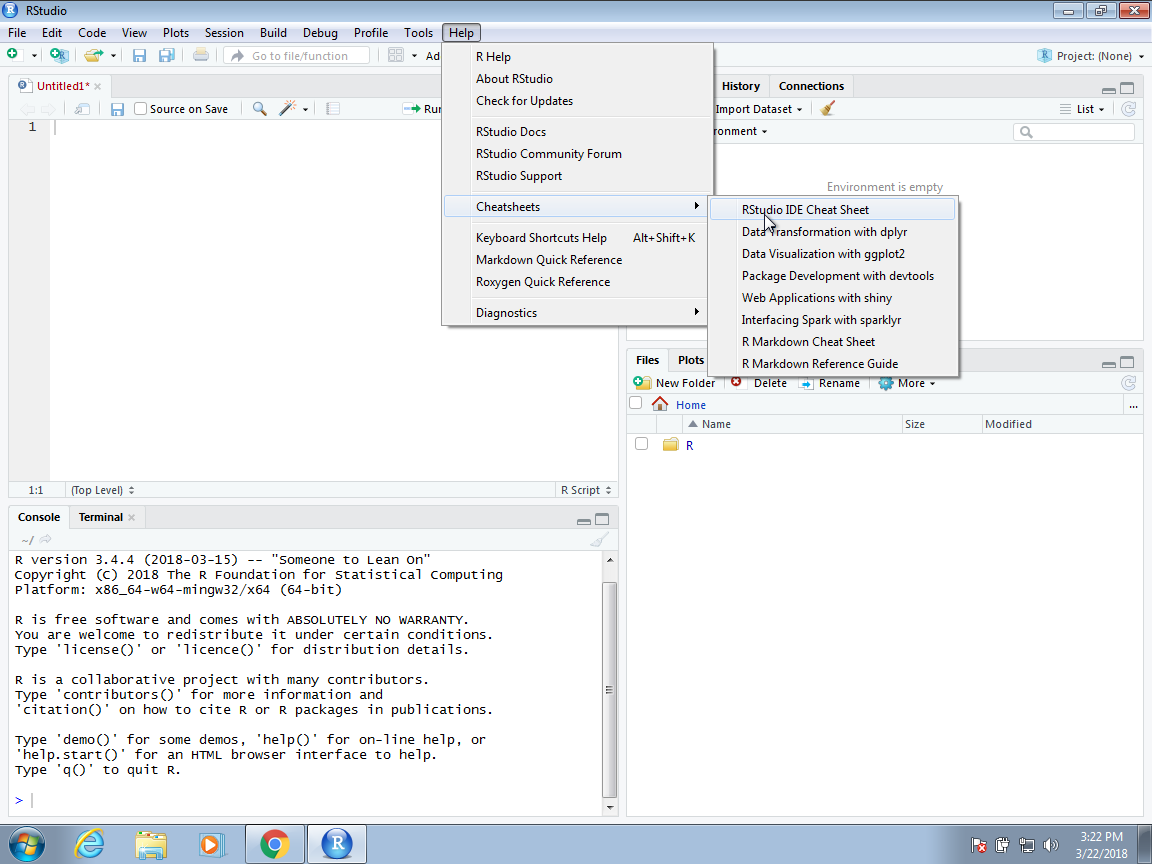
You might want to keep this handy so you can look up key-bindings when you find yourself performing repetitive point-and-clicking.
Running commands while editing scripts
There are many editors specifically made for coding. These are useful because color and indentation are automatically added to make code more readable. RStudio is one of these editors, and it was specifically developed for R. One of the main advantages provided by RStudio over other editors is that we can test our code easily as we edit our scripts. Below we show an example.
Let’s start by opening a new script as we did before. A next step is to give the script a name. We can do this through the editor by saving the current new unnamed script. To do this, click on the save icon or use the key binding Ctrl+S on Windows and command+S on the Mac.
When you ask for the document to be saved for the first time, RStudio will prompt you for a name. A good convention is to use a descriptive name, with lower case letters, no spaces, only hyphens to separate words, and then followed by the suffix .R. We will call this script my-first-script.R.
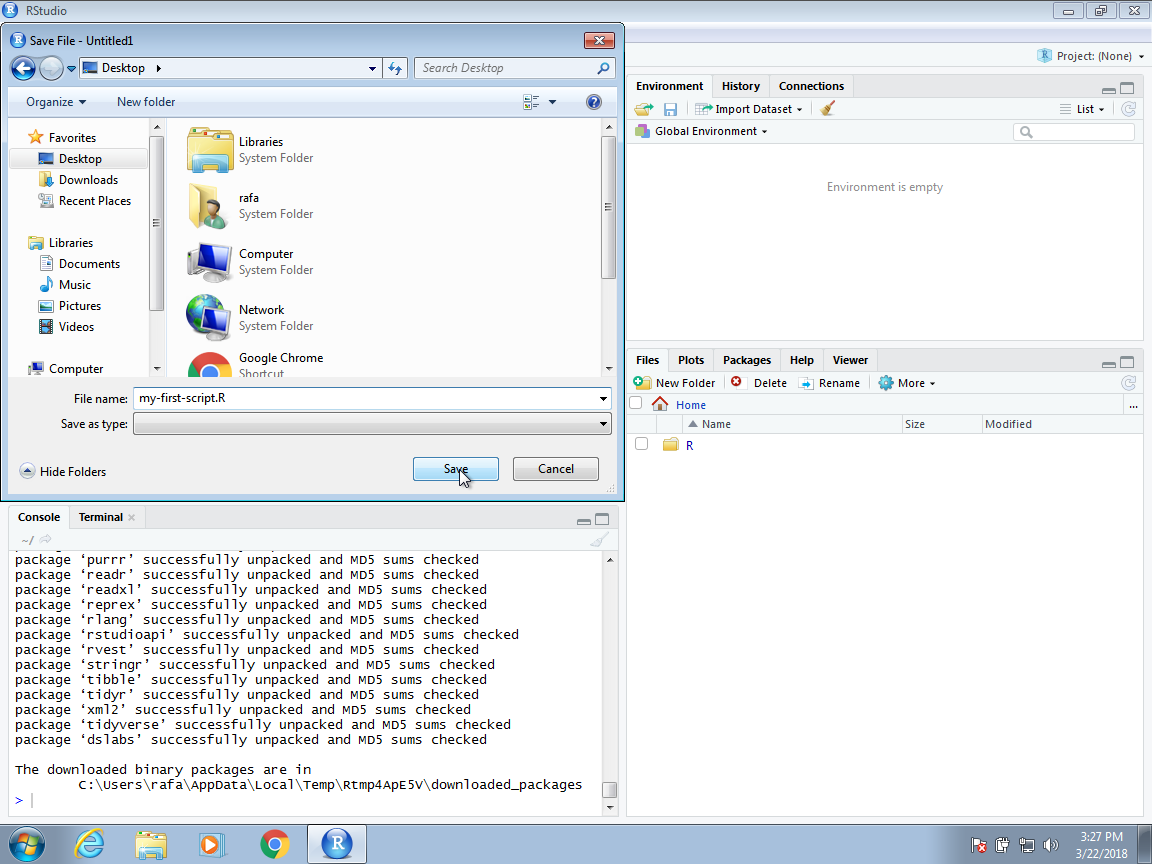
Now we are ready to start editing our first script. The first lines of code in an R script are dedicated to loading the libraries we will use. Another useful RStudio feature is that once we type library() it starts auto-completing with libraries that we have installed. Note what happens when we type library(ti):
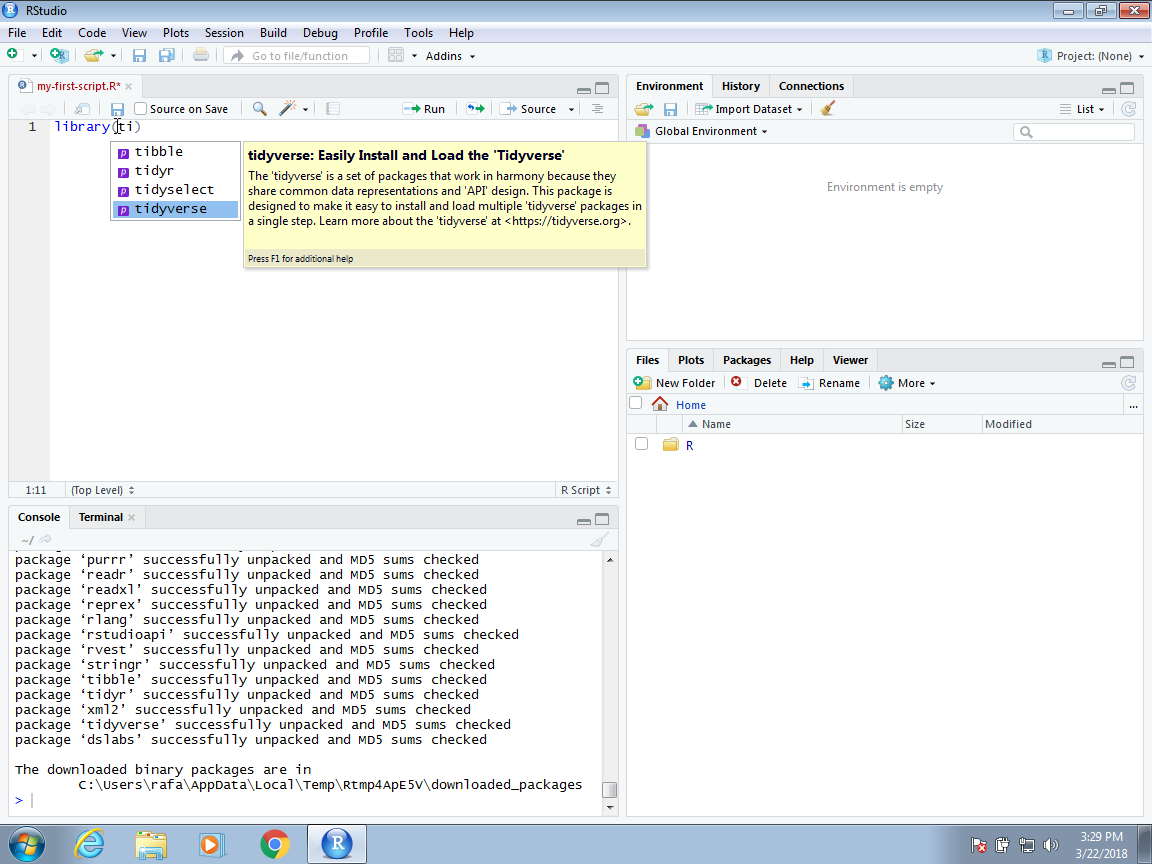
Another feature you may have noticed is that when you type library( the second parenthesis is automatically added. This will help you avoid one of the most common errors in coding: forgetting to close a parenthesis.
Tip: Running segments of your code
RStudio offers you great flexibility in running code from within the editor window. There are buttons, menu choices, and keyboard shortcuts. To run the current line, you can 1. click on the
Runbutton above the editor panel, or 2. select “Run Lines” from the “Code” menu, or 3. hit Ctrl+Return in Windows or Linux or ⌘+Return on OS X. (This shortcut can also be seen by hovering the mouse over the button). To run a block of code, select it and thenRun. If you have modified a line of code within a block of code you have just run, there is no need to reselect the section andRun, you can use the next button along,Re-run the previous region. This will run the previous code block including the modifications you have made. {: .callout}
Changing global options
You can change the look and functionality of RStudio quite a bit.
To change the global options you click on Tools then Global Options…
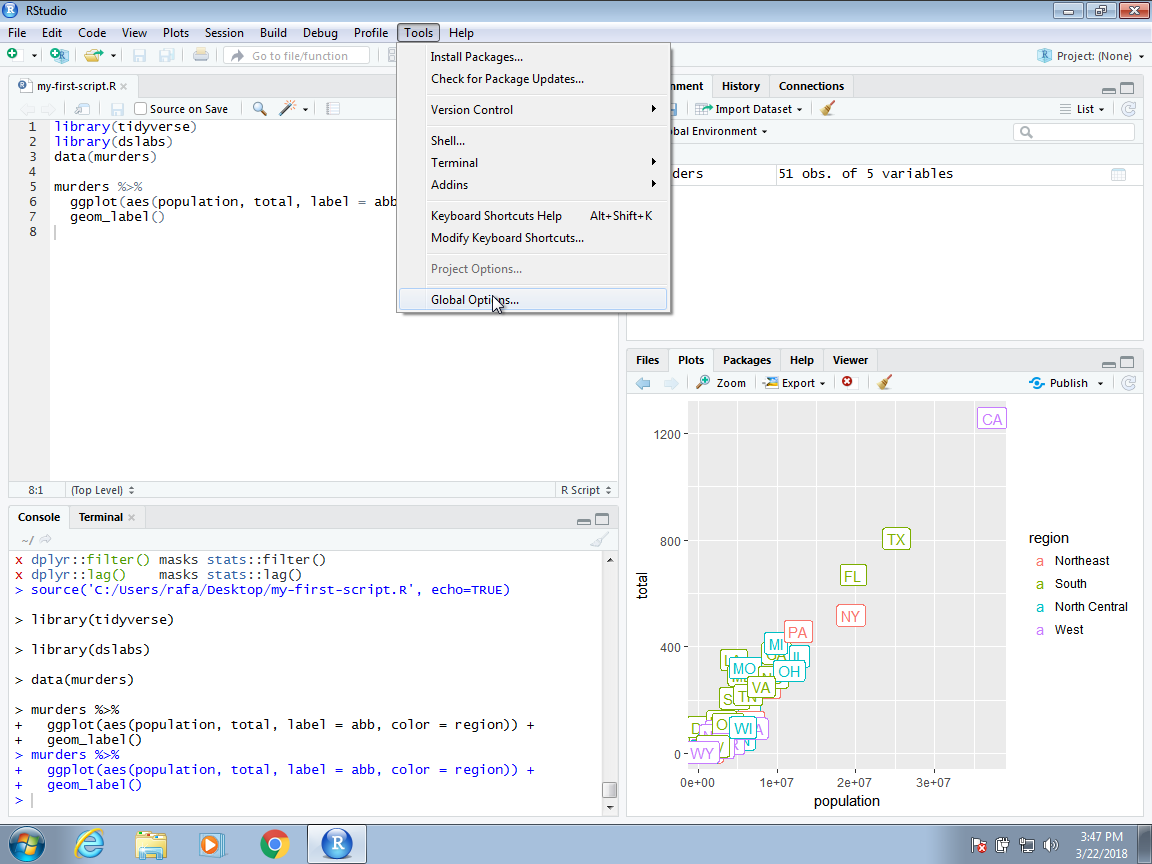
As an example, we show how to change the appearance of the editor. To do this click on Appearance and then notice the Editor theme options.
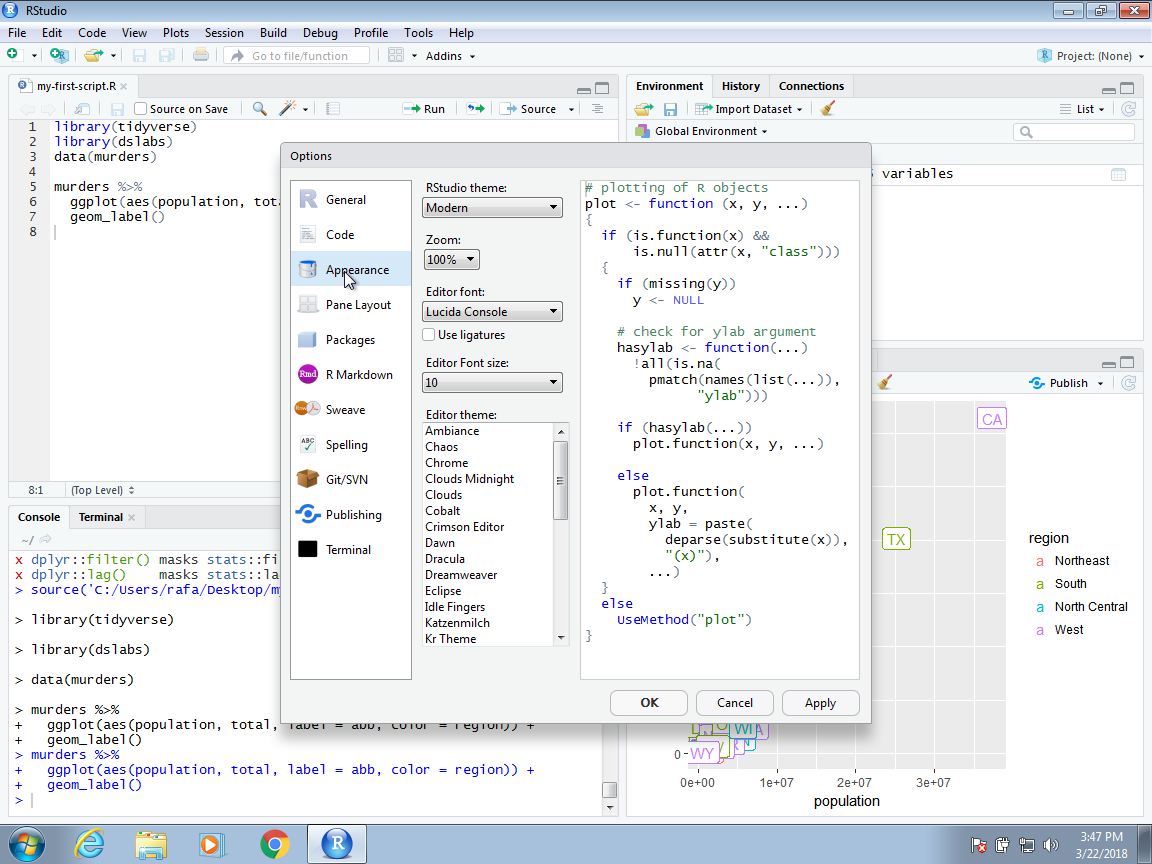
You can click on these and see examples of how your editor will look.

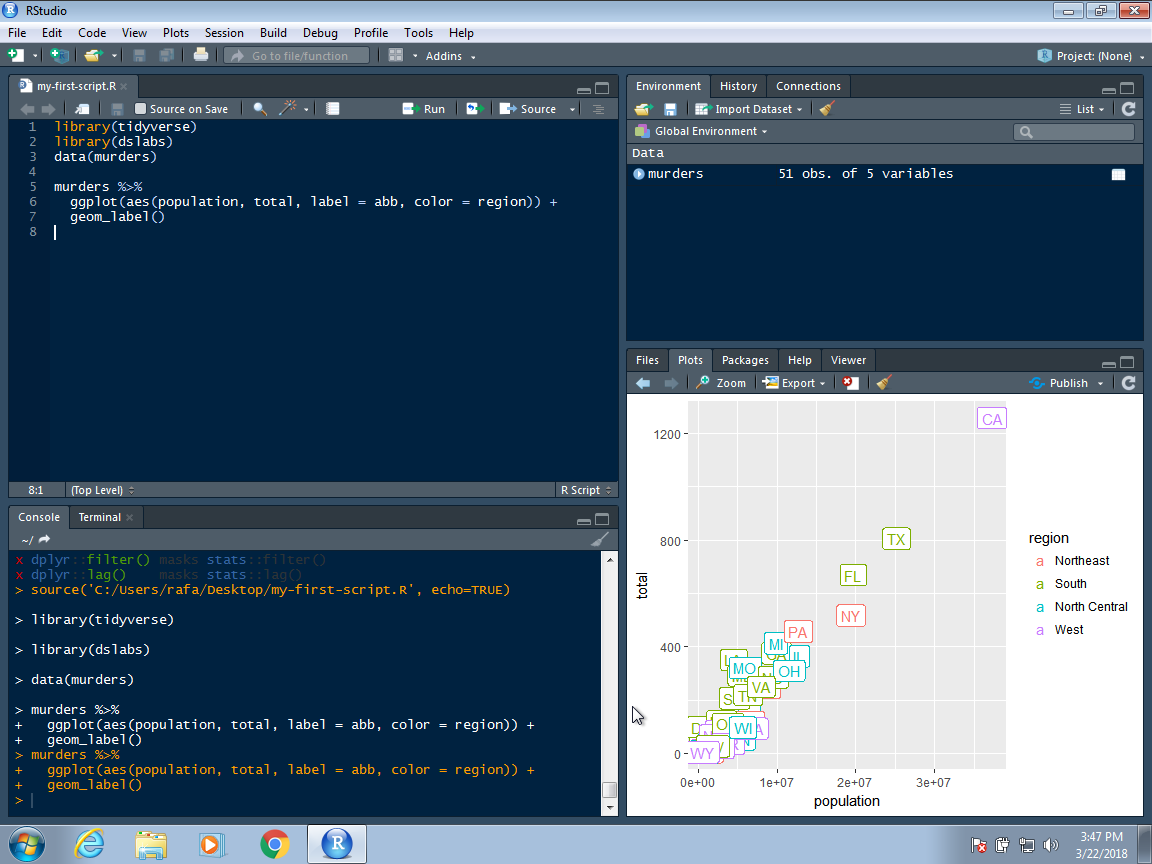
What about the Cobalt option? This makes your editor look like this:
Challenge
Chat with the people sitting beside you and go though this cheat sheet together. Go over doubts and explore!
If want to see it more closely go here: https://rstudio.github.io/cheatsheets/html/rstudio-ide.html?_gl=1kwphs8_gaMTA2NTQzMDI2OC4xNzI3ODcwMjAx_ga_2C0WZ1JHG0*MTcyNzg3MDIwMS4xLjAuMTcyNzg3MDIwMS4wLjAuMA..
Footnotes
https://cran.r-project.org/↩︎
https://pdfs.semanticscholar.org/9b48/46f192aa37ca122cfabb1ed1b59866d8bfda.pdf↩︎
https://opensource.org/history↩︎
https://stats.stackexchange.com/questions/138/free-resources-for-learning-r↩︎
https://www.r-project.org/help.html↩︎
https://stackoverflow.com/documentation/r/topics↩︎
https://www.rstudio.com/↩︎